People who search for "pdf to jpg" or "how to save a pdf as a jpeg" usually want one of three things: a picture of a page to post or send in a chat, an image to place in a slide or document, or a JPG for a form that only takes images. All three come down to the same step: turning each page of the PDF into an image file.
How to convert a PDF to JPG or PNG in 5 steps
- Open PDF to images and choose your PDF.
- Pick the format: JPEG (the .jpg format) or PNG.
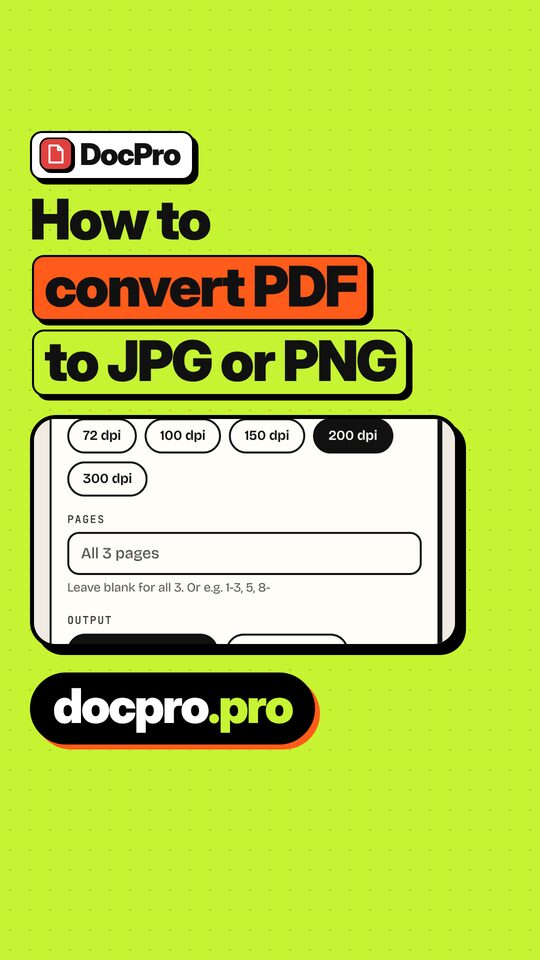
- Pick a resolution: 72, 100, 150, 200 or 300 dpi. A note shows the pixel size that page 1 will have.
- Choose the pages. Enter the pages or ranges you need, for example 1-3, instead of converting the whole file.
- Click Convert to images and download. Separate files arrive in a ZIP with one image per page. You can also ask for one tall image that stacks the chosen pages.
The short video below shows the same steps in about 30 seconds. The tool is free, needs no account, and the PDF is processed in your browser, so the file is not uploaded anywhere.
JPG or PNG: which one should you pick?
- JPG (JPEG) files are usually smaller. The format compresses with some loss, which suits pages full of photos. For JPEG the tool adds a quality slider from 30 to 100 percent.
- PNG is lossless, so text, diagrams and thin lines stay sharp. A page of mostly text often looks cleaner as PNG, but the file is larger.
- If a form says "JPG only", choose JPEG. If you are not sure, convert one page both ways and compare the size and sharpness.
For the technical background on the two formats, see the MDN guide to image types and the PNG specification listed under sources.
Resolution and size
- 150 dpi, the default, suits screens and chat apps. 300 dpi suits printing but makes much larger images.
- To make a JPG smaller, lower the JPEG quality or the resolution, or run the result through Compress image.
- Very large pages may be rendered slightly below the dpi you chose to stay within browser limits. The tool tells you when that happens.
- Choosing many pages as one tall image can exceed what the browser allows. The tool then asks for fewer pages, a lower resolution or separate files.
Save a PDF as a JPEG on iPhone, Android or a computer
The steps are the same in any modern browser, so they work on a phone as well as on Windows, Mac or Linux. On an iPhone the images end up in the Files app; the guide to converting a PDF to JPG on iPhone covers saving to Photos and compares screenshots and Shortcuts. The PDF to JPG task page has the short version.
When a portal only accepts JPG
Some upload forms accept images only, others accept PDF or JPG. The accepted formats and size limits differ from one portal to the next, so read the form's own instructions first. The USCIS online filing post shows how one such rule is checked and met. If the converted image is over the size limit, lower the quality or resolution and convert again.
Going the other way? Images to PDF turns JPG and PNG files back into one PDF.